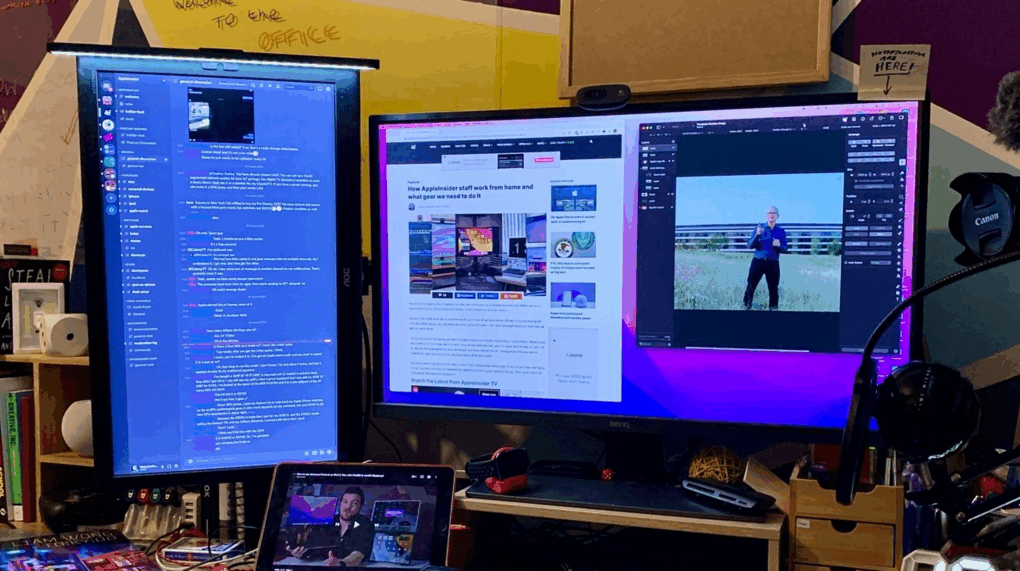
Having a second monitor connected to your computer is like having additional workspace and is significantly useful when there is a need to work on multiple spreadsheets and have both visible simultaneously, or if you’re a gamer, multiple screens can elevate your gaming experience.
With a second monitor, you are able to switch between applications quickly. Instead of using keyboard shortcuts such as Alt+Tab, you can navigate the mouse to the other monitor.
Despite these advantages, setting up second monitors can be frustrating, especially if you use multiple displays as part of your workspace. There are times when your computer does not detect your second monitor. This can decrease productivity or affect your gaming experience. Whether you’re working with regular monitors or other devices that require connectivity such as a wifi baby monitor, knowing how to detect a second monitor can be the first step on resolving common issues.
Why Your Second Monitor Isn’t Being Detected
A second monitor can be one of the most potent activity boosters you can have, but sometimes your computer fails to detect the extra display. Here’s why your second monitor is not being detected:
- The monitor is not turned on
- Your monitor and computer are not connected
- You have an outdated display adapter
- You’re using the incorrect port
How to Detect Second Monitor on Windows
If your second monitor is not detected on your Windows, it can be due to various reasons, such as basic hardware issues like a loose cable, or a couple of tweaks that need to be made in the settings menu. Here’s how you can resolve your issue, whether you’re on Windows 10 or Windows 11.
- Check that your monitor is powered on
- Make sure that your monitor and PC are connected
- Check you’re using the correct port if you’re using a graphics card
- Swap cables
- Check that your dock is hooked up correctly
- Restart your PC
- Update your graphics drivers
- Change your Display settings
- Connect to a wireless display instead
Here are more detailed instructions for each step.
Check your monitor if it’s powered on and hooked up properly. Try to do these steps to see if they resolve your issues.
- Make sure that your monitor is connected to its power source and is powered on.
- Check if your monitor is connected to your PC’s video output port, such as an HDMI or USB-C port.
- If you have a desktop with a dedicated graphics card, make sure that your monitor is connected to the card’s port and not the integrated GPU’s port.
- Make sure you have switched to the correct input options by toggling the monitor’s input options using its physical keys located on the side or back of it
- Try using a different cable. Your current cable may be faulty or a few years older than your monitor; you may need to replace the cable
- Make sure the dock is powered on and connected properly.
- Restart your PC.
Updating your graphics driver regularly can also fix this issue. The easiest way to update your driver is by using a software direct from your GPU’s manufacturer.
If you checked that everything is plugged in and connected but your monitor still won’t work, you can go to Windows settings.
- Open the Settings app by launching the Start menu and typing “Settings” before clicking on the Settings app menu when it appears.
- Click System on the left-hand side.
- Click Display to enter the display settings menu.
- Under Multiple displays, click Detect to get your computer to manually connect your second monitor.
Your monitor should now be detected by Windows.
How to Detect Second Monitor on Mac
If you want to make things easier, you can connect your Mac to one or more external displays. But before you connect, you need to determine a few things:
- What kind of video ports your Mac has
- How many displays your Mac can support
- Whether or not you have the right cables
If your Mac does not detect a second monitor connected or if the display appears blurry, you can try to detect it in the System settings, or try one of the other troubleshooting tips below:
- On your Mac, choose the Apple menu and then System settings, click Displays in the sidebar.
- Press and hold the Option key to make the Detect Displays button appear in place of the Night Shift button, click Detect Displays.
- If your Mac still does not recognize the connected monitor, try any of the following:
- Remove the plug of the monitor from your Mac, then plug it back in
- Make sure the monitor is turned on
- Check if the cable you’re using is securely connected to the right port
- Make sure you’re using the right cable to connect your monitor.
- Make sure you use the correct adapter
- Put your Mac to sleep mode then wake it
- Make sure your Mac supports the type and number of connected displays. You can check the tech specifications for your Mac by choosing the Apple menu and then System settings. Click Help in the menu bar and choose [your Mac’s name] Specifications, then scroll down to Display Support or Video Support
- If you’re using a third-party display, check the included documentation to ensure you’re connecting the display according to the manufacturer’s guidelines.
Connection Types You Can Use for Dual Monitors
If you’re experiencing problems with how to detect second monitor, it may not be due to the operating system but rather the wrong cable or port. Understanding the different types of video connections can help you prevent monitor issues. The following are some of the most common ports you will encounter:
- Video Graphics Array (VGA)
VGA ports can still be found on most monitors. Modern VGA can support up to 1080p resolutions, but still has no audio functionality. These ports are always blue in color and shaped like a trapezoid.
- High-Definition Multimedia Interface (HDMI)
Most monitors today come with an HDMI port. A standard HDMI port can carry audio and display resolutions of up to 1920 x 1080. These ports are usually found on the back of a device and look like a trapezoid with a step in the middle
- Digital Visual Interface (DVI)
The video capabilities of a DVI port are sometimes better compared to an HDMI port. While HDMI cables can transfer audio, DVI cannot. DVI ports were used less frequently. These ports are white and have a 24-pin connector and an additional flat pin connector.
- DisplayPort
DisplayPort is becoming the norm in the market. These ports resemble a rounded rectangles that have one corner cut off. They can support resolutions and frame rates of 8k at 60 fps, 4k at 144 fps, and 1080p at 240fps.
Dual Monitor Setup Tips & Tricks
Make sure your system can detect your second monitor before exploring productivity tips. Most people are searching for how to detect second monitor are just missing a small step in their setup. When your second monitor is finally detected by your system, you can:
- When connecting a second monitor, make sure to go into your display settings and adjust both monitors’ resolutions accordingly.
- You can manually adjust the arrangement of your monitors. This makes your monitors function as smoothly as possible.
- You can also use third-party tools for swapping displays and arranging your windows.
- When you have a second monitor, you also have multiple taskbars.